Contents
Step 1 – Markdown Document
Properties
MarkdownDocument
Step ID5036f2031de645b39e5b4ffa89f08a59
Overview
-
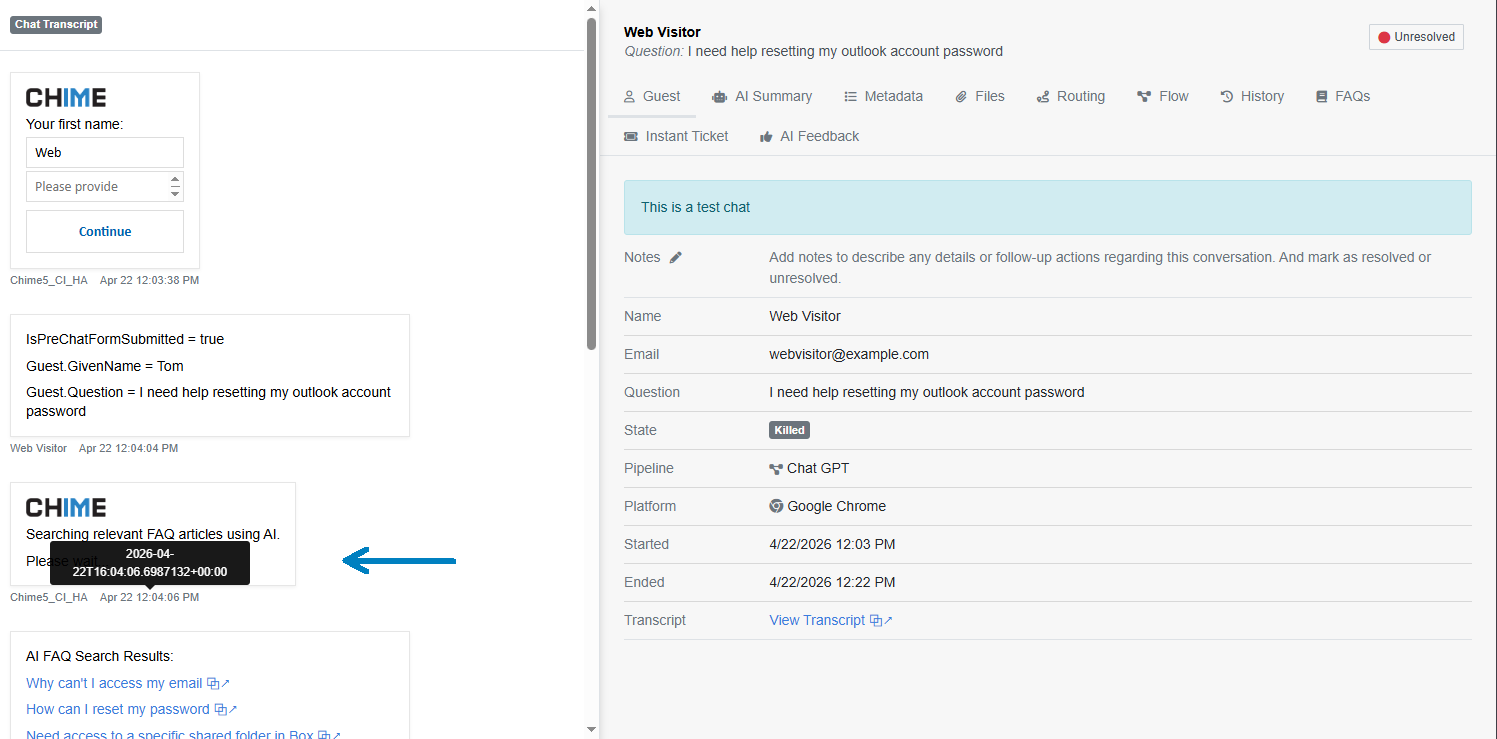
Message Time Stamp Updates - Timestamps now display a shorter, cleaner date format for easier reading in chat.
-
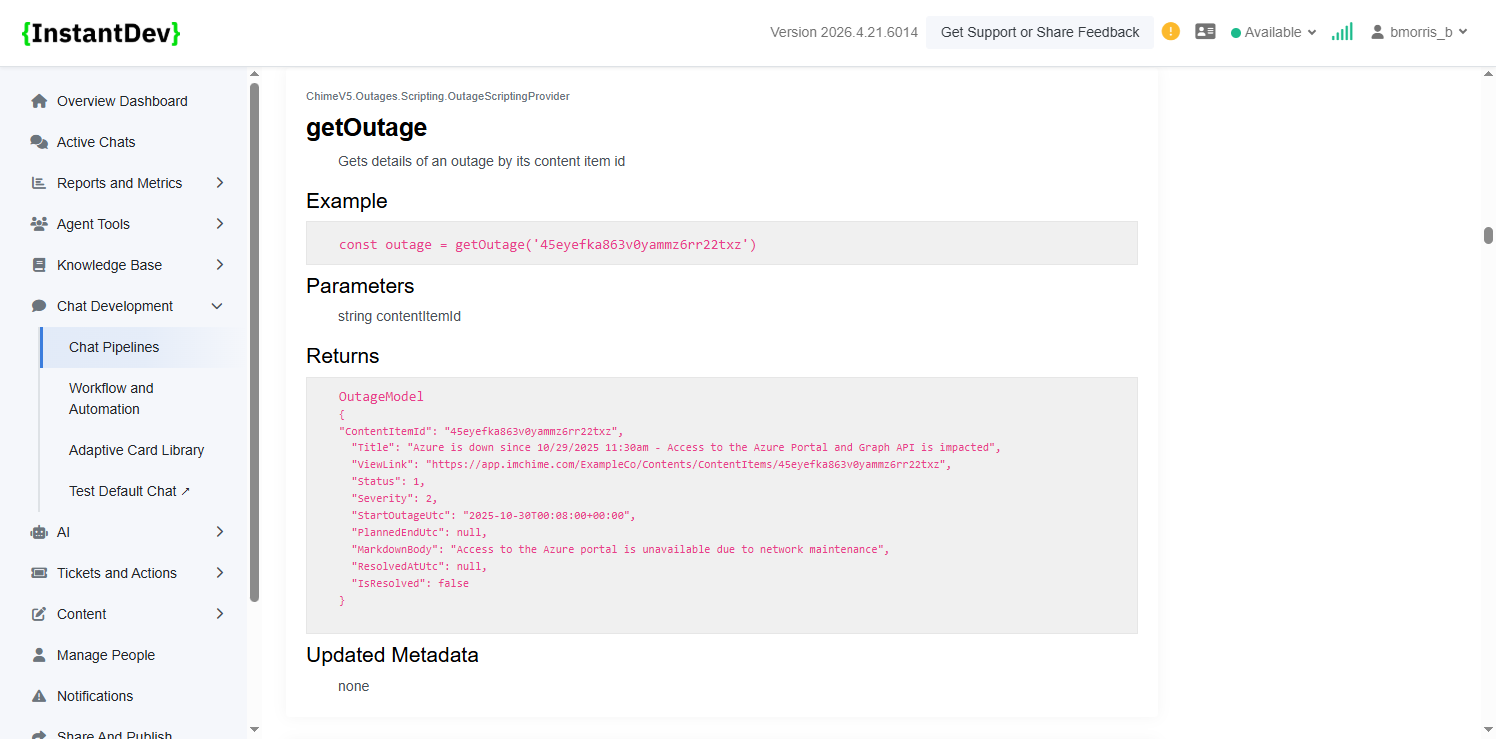
Outage Scripting Enhancements - Added new methods to view ongoing, upcoming, and specific outages directly within scripts.
-
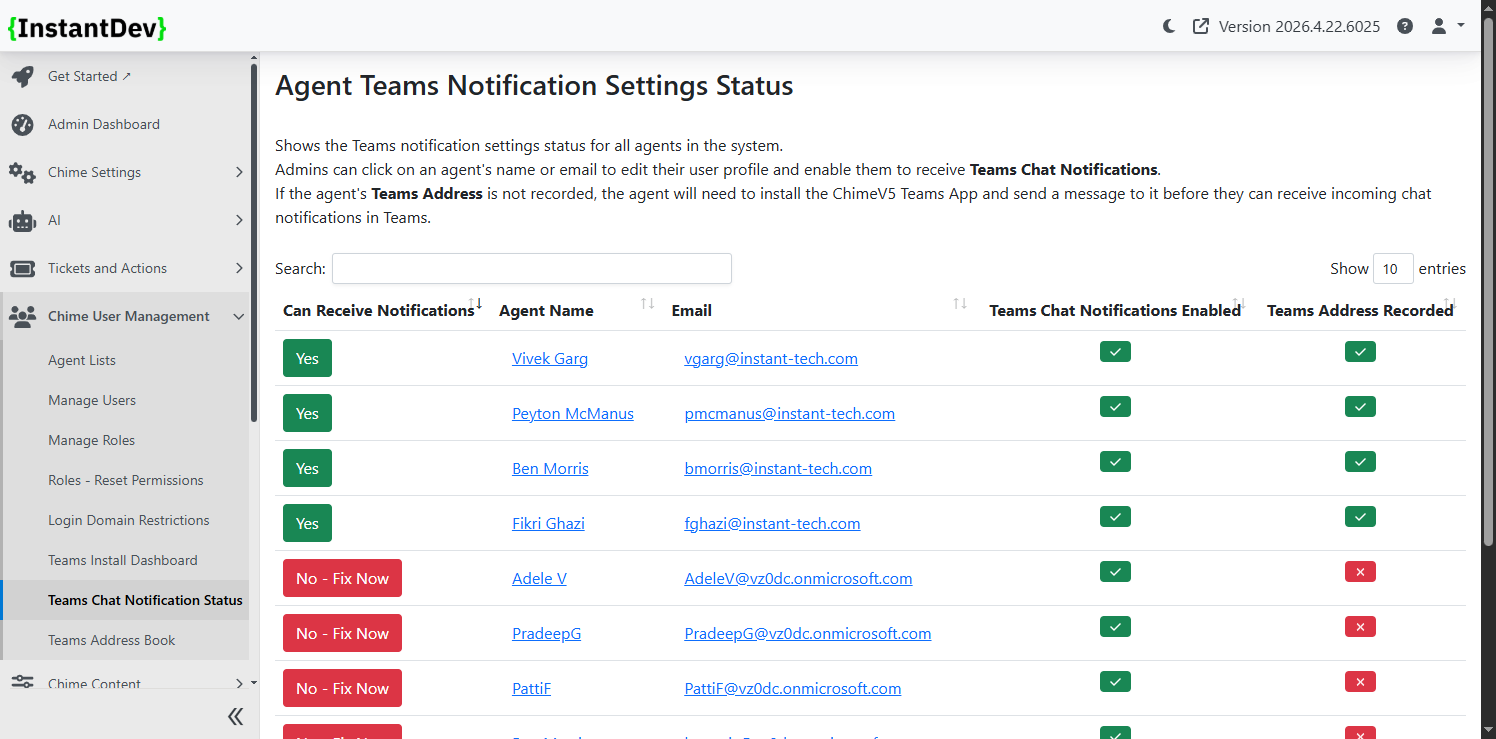
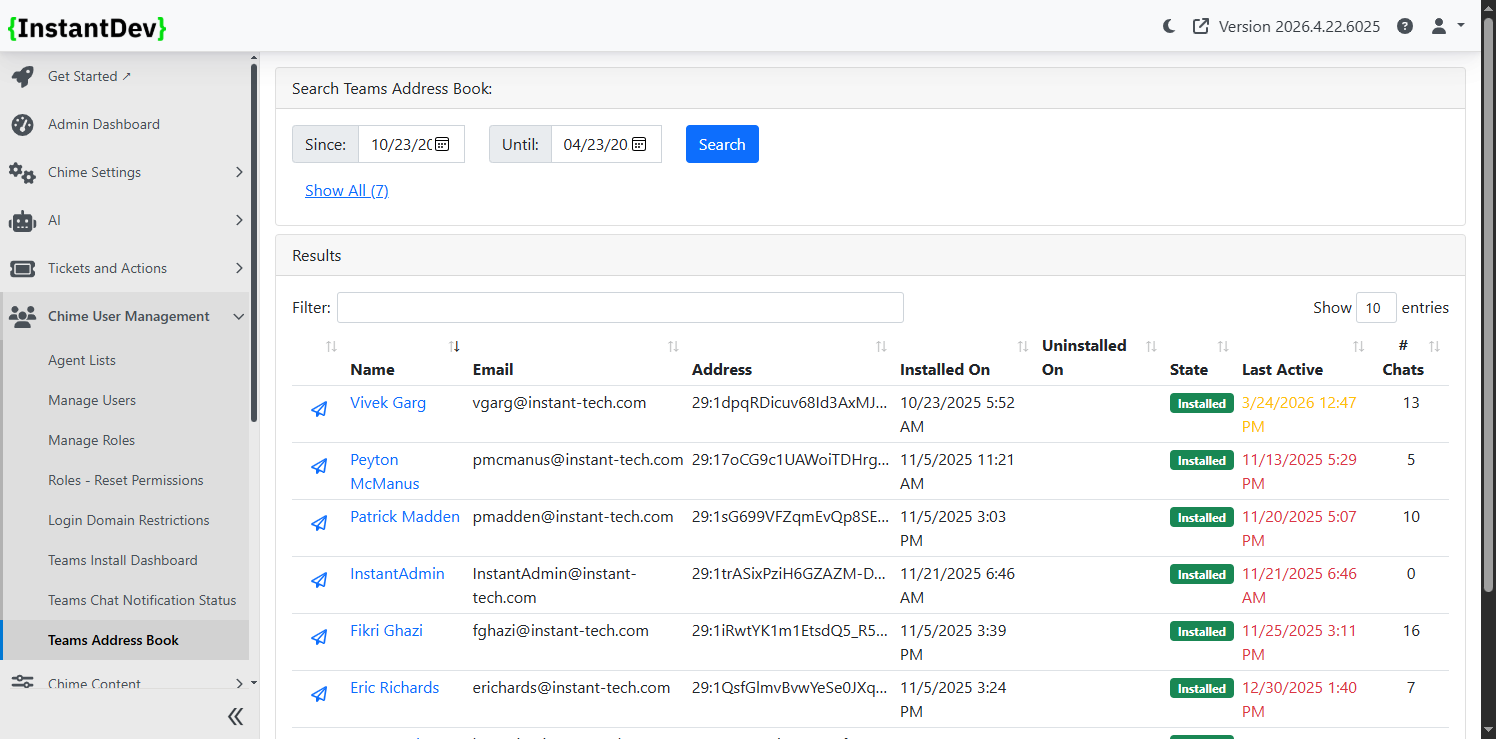
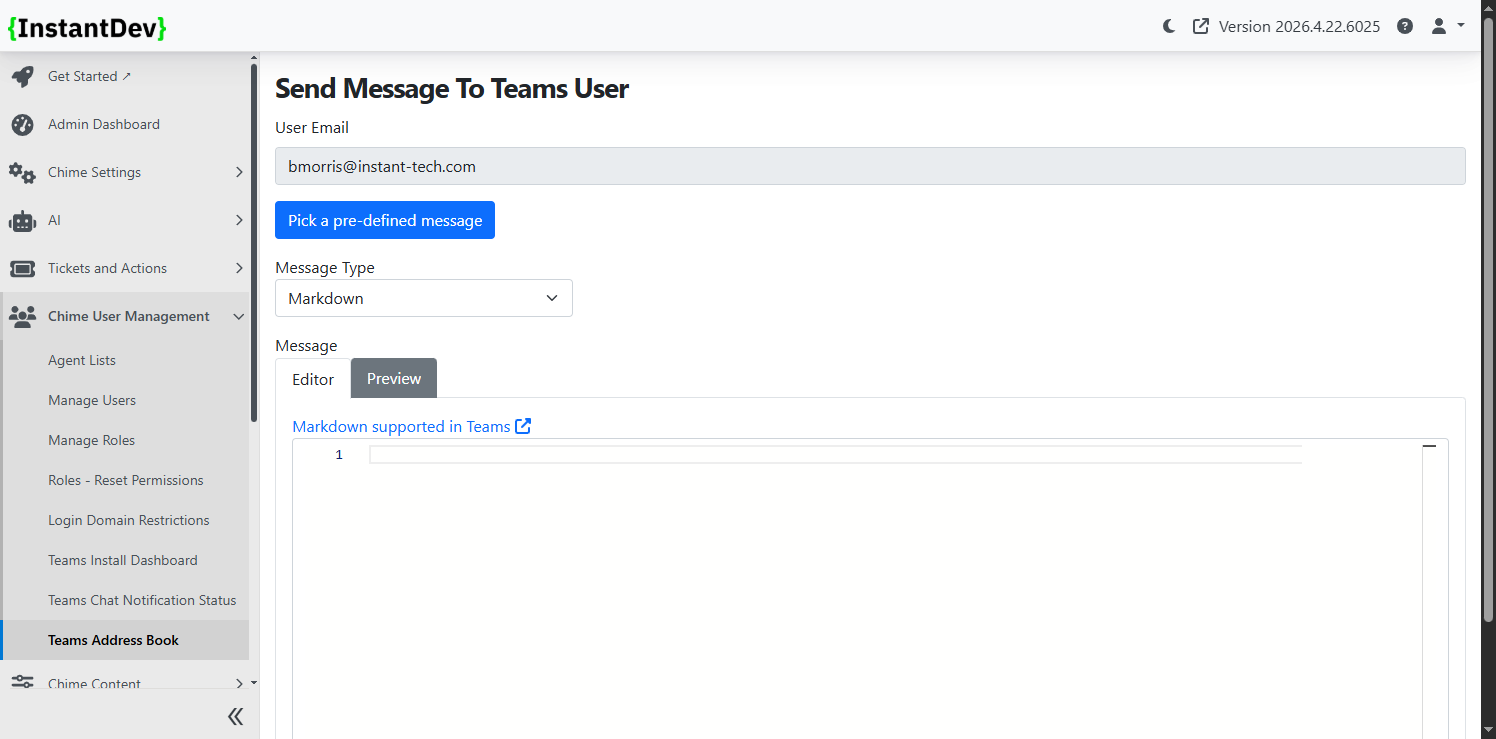
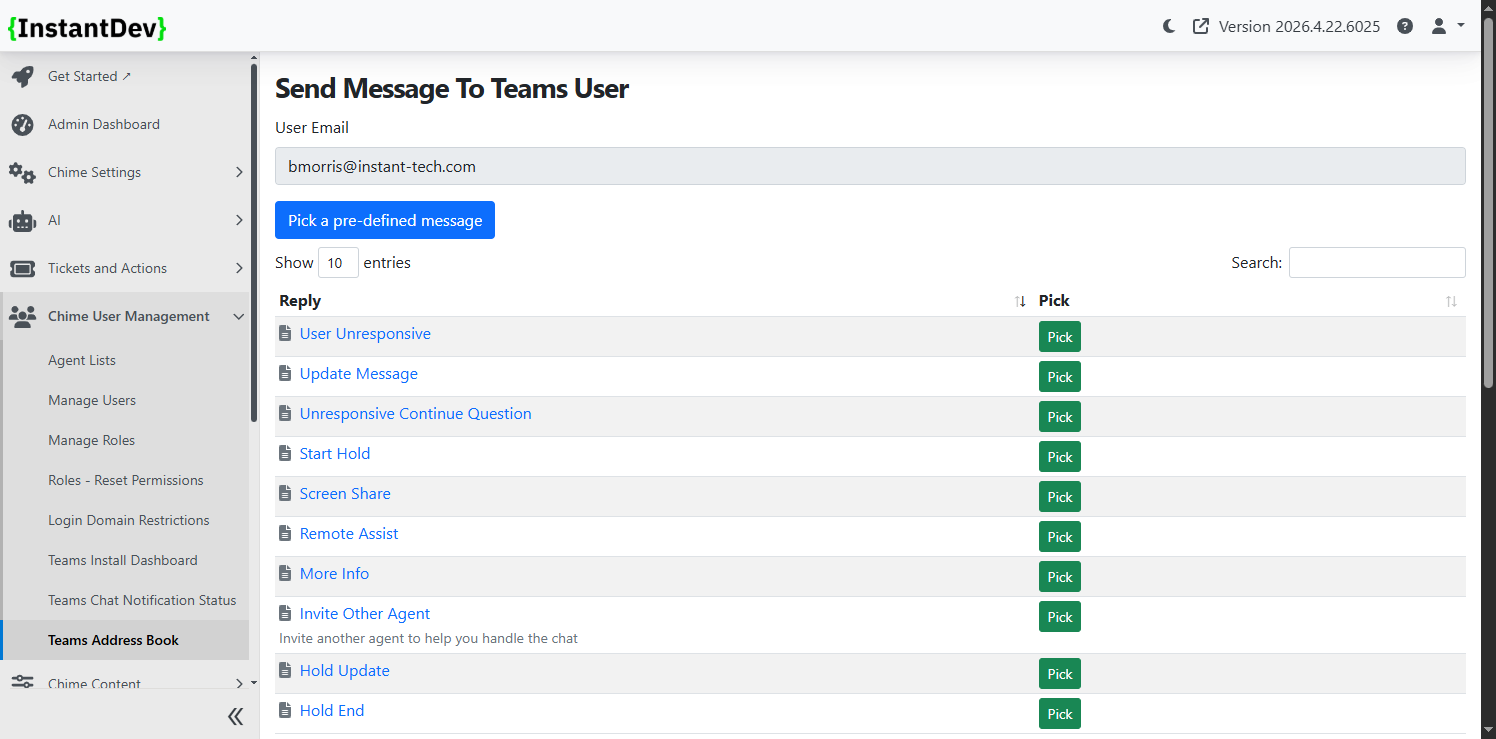
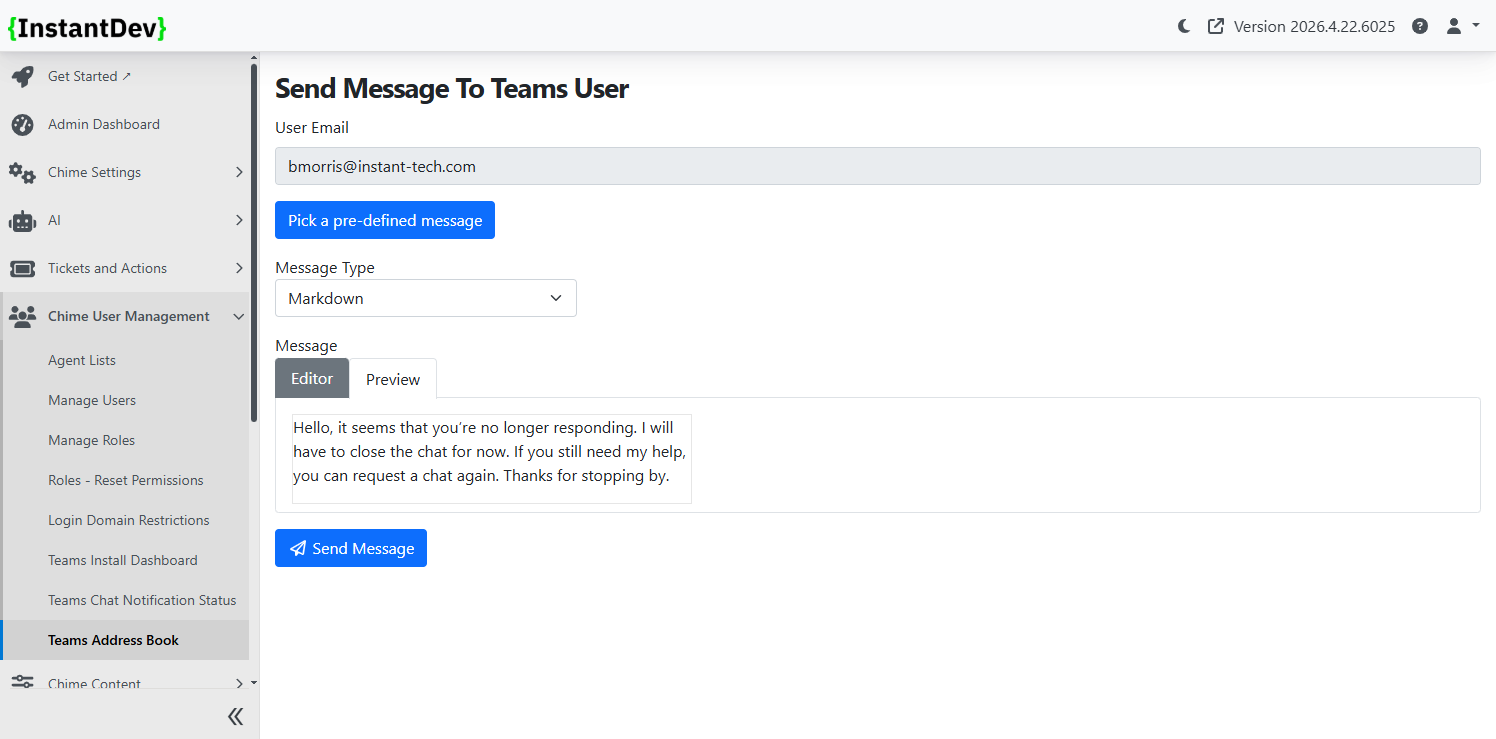
Teams User Messaging & Tracking - Added the ability to proactively message Teams users, along with enhanced user insights like chat history, session data, notes, and activity tracking.
-
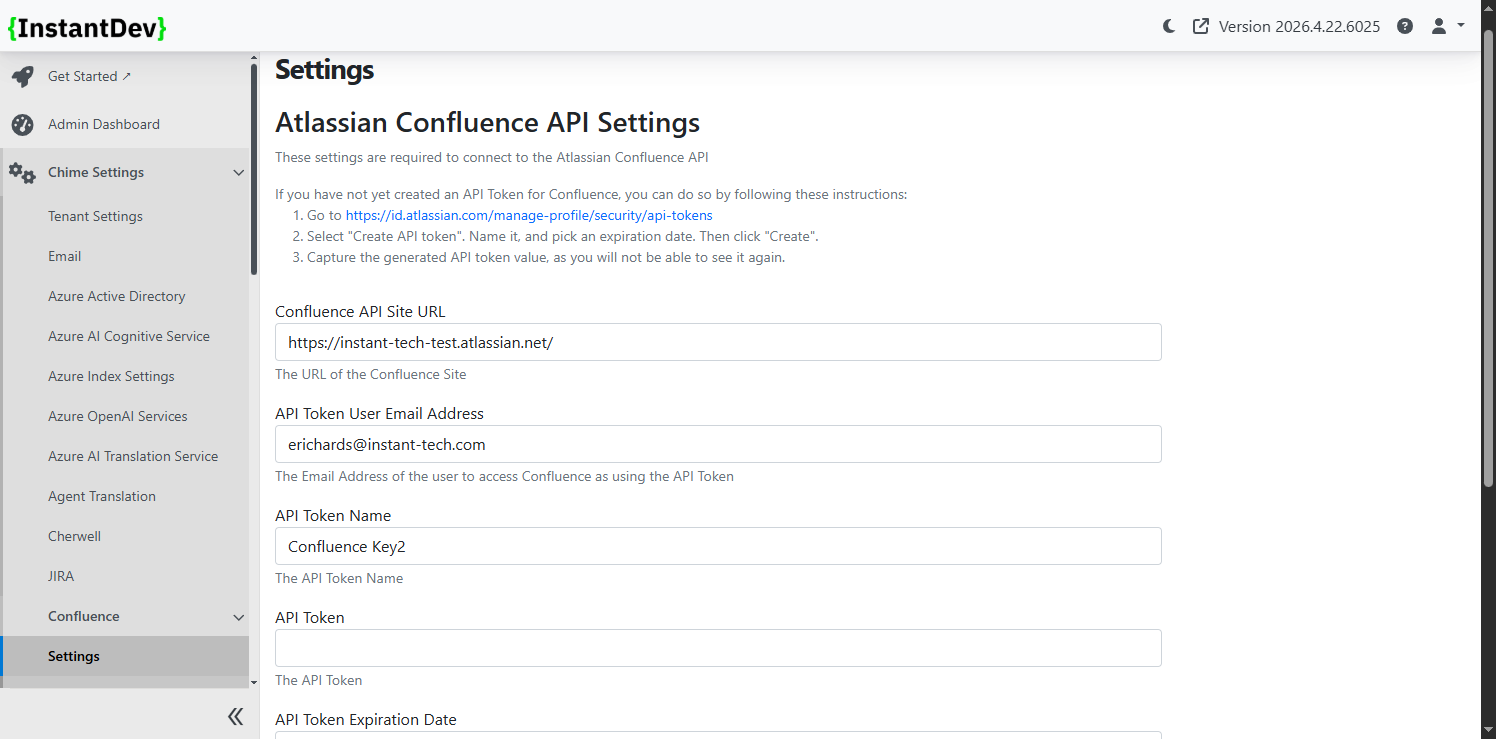
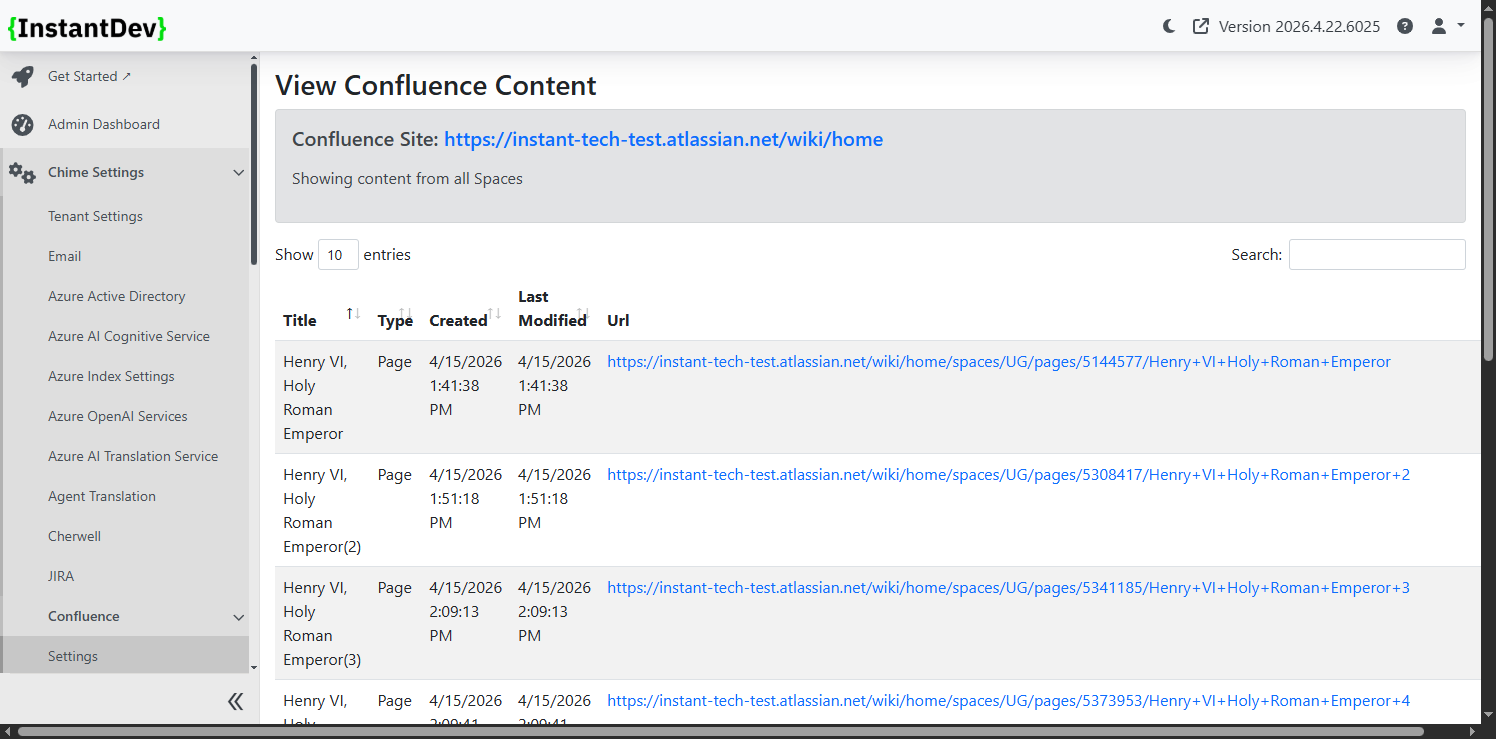
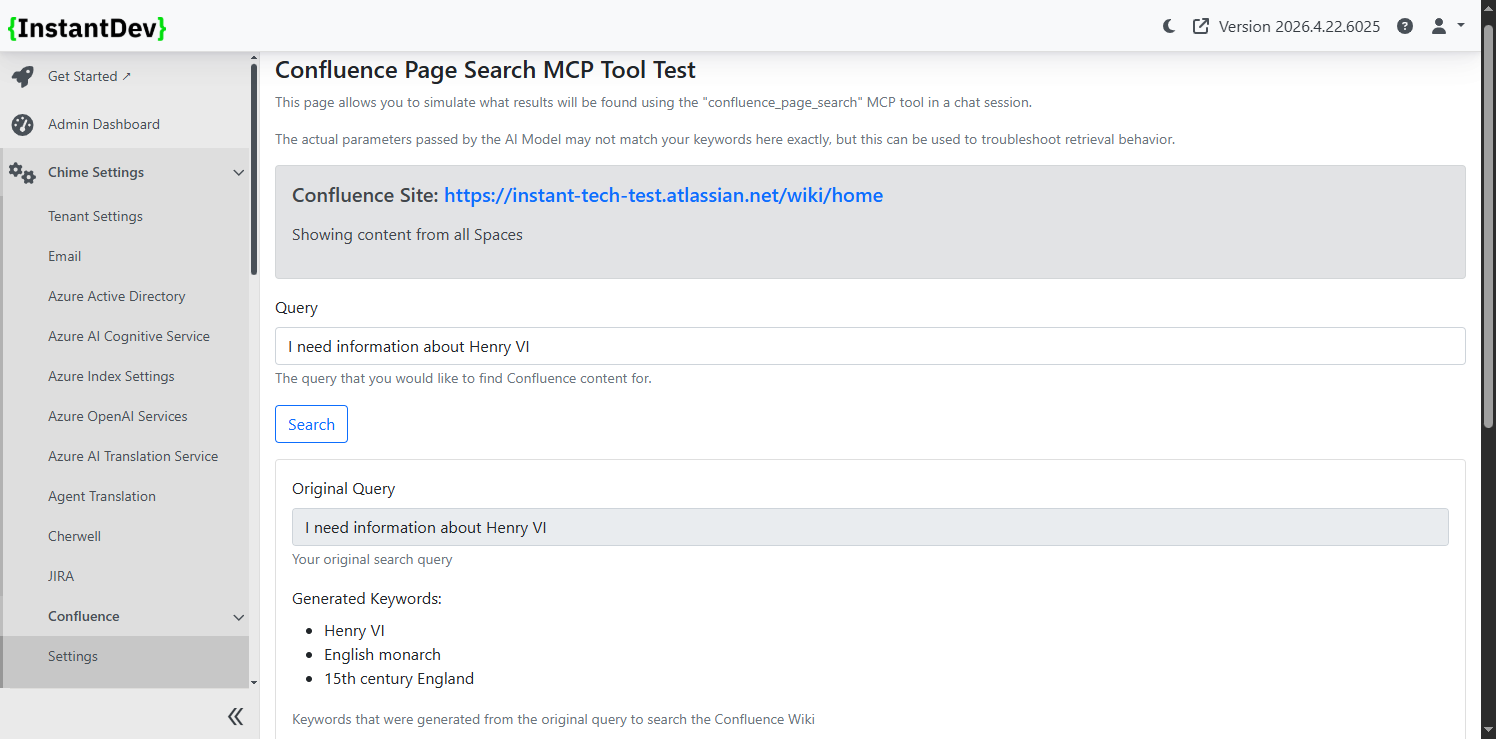
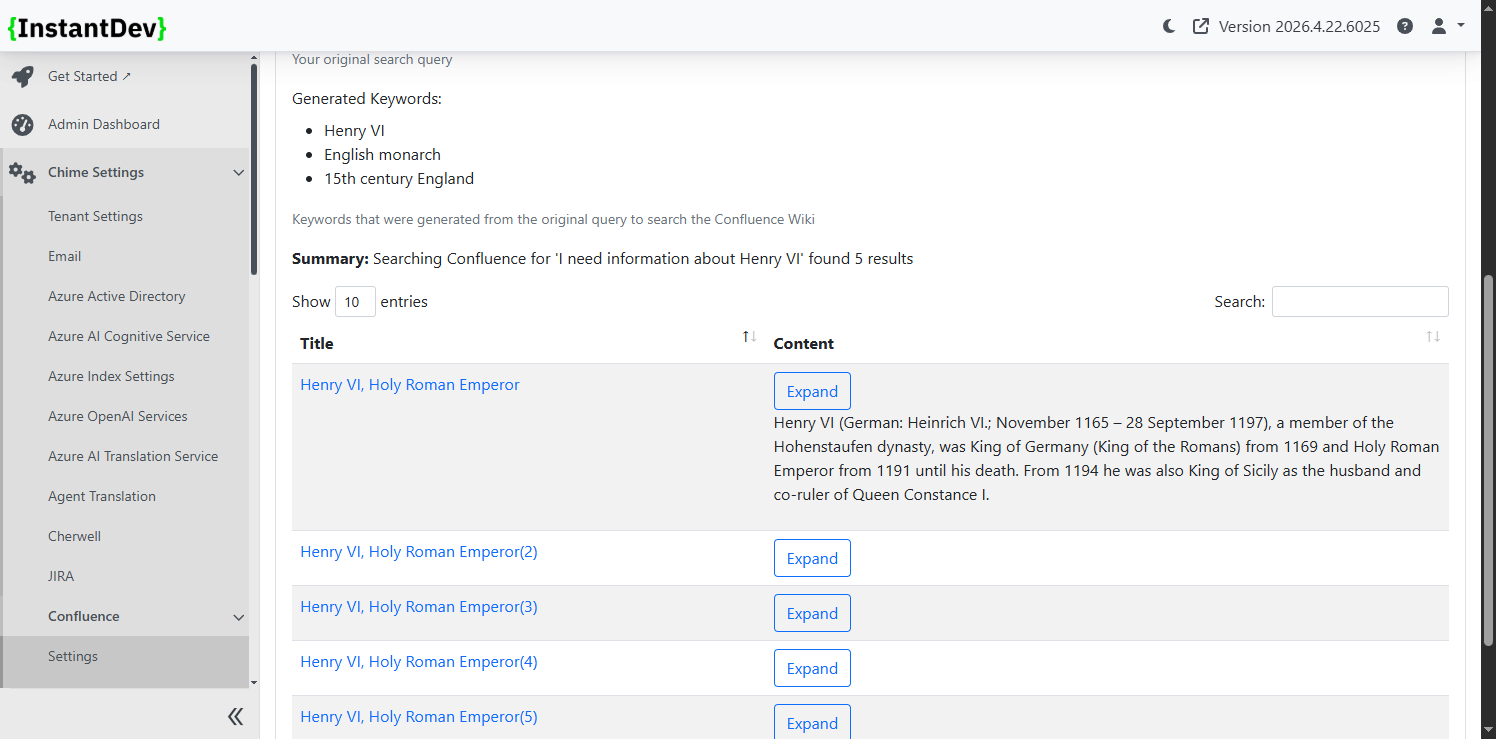
Confluence Integration for AI & Chat - Introduced Confluence integration to surface page content in chat using AI-powered search, with space scoping and admin configuration.
-
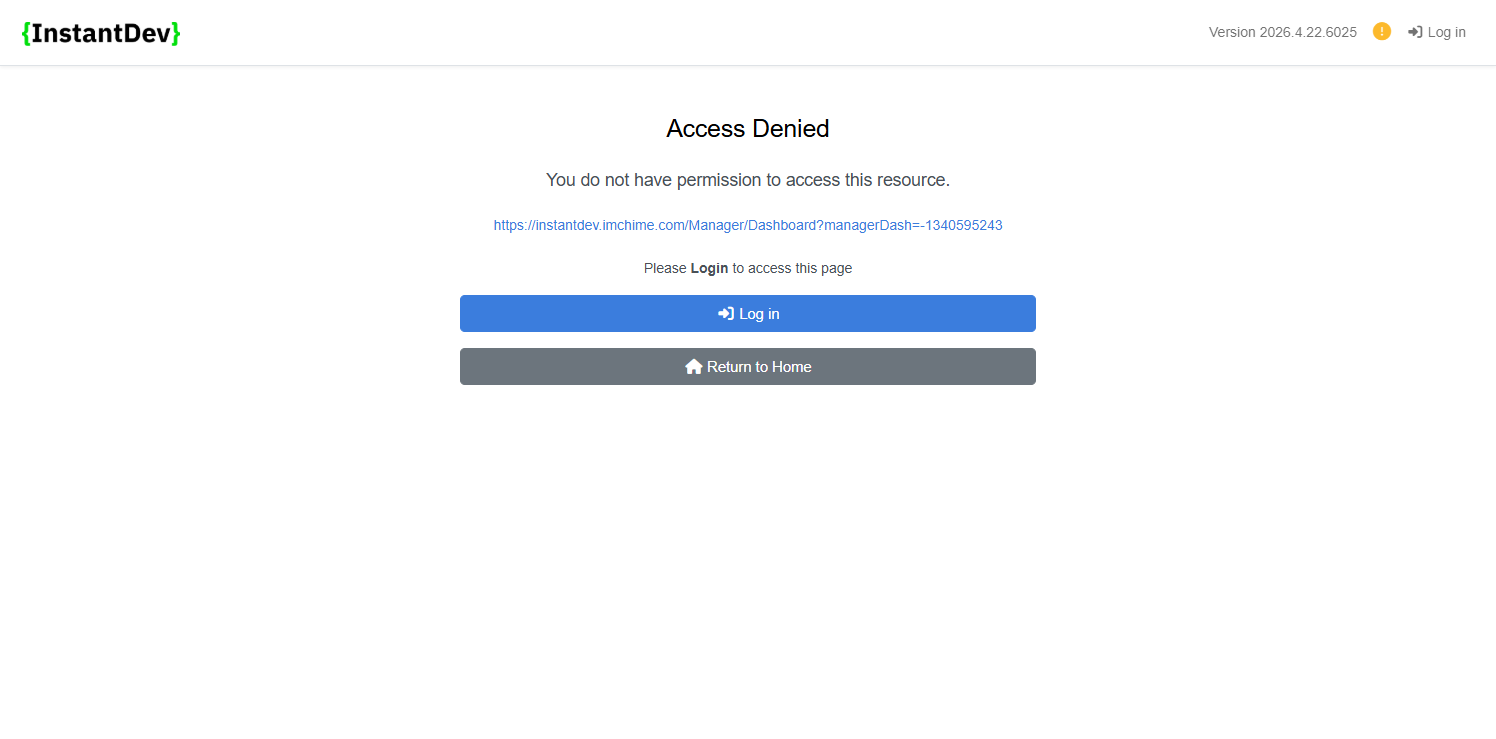
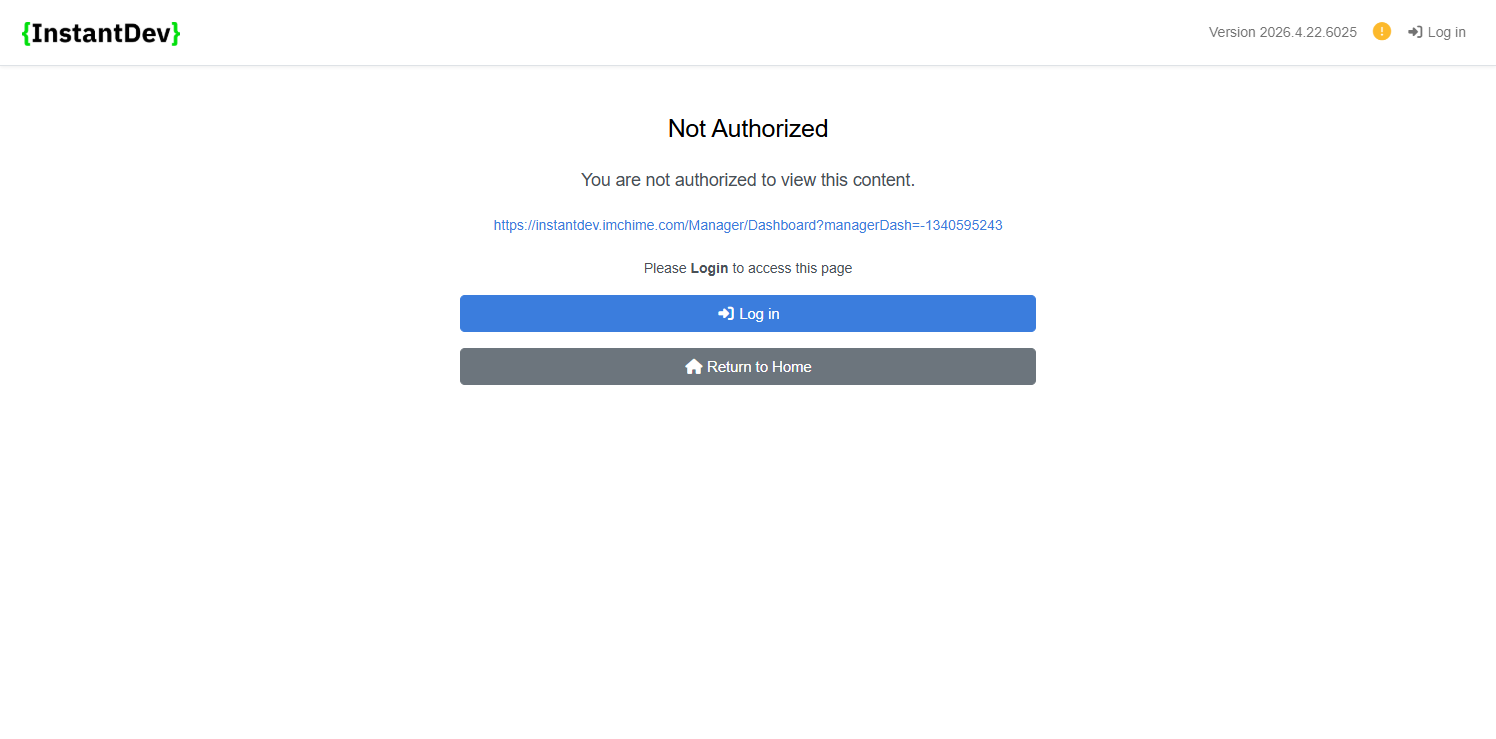
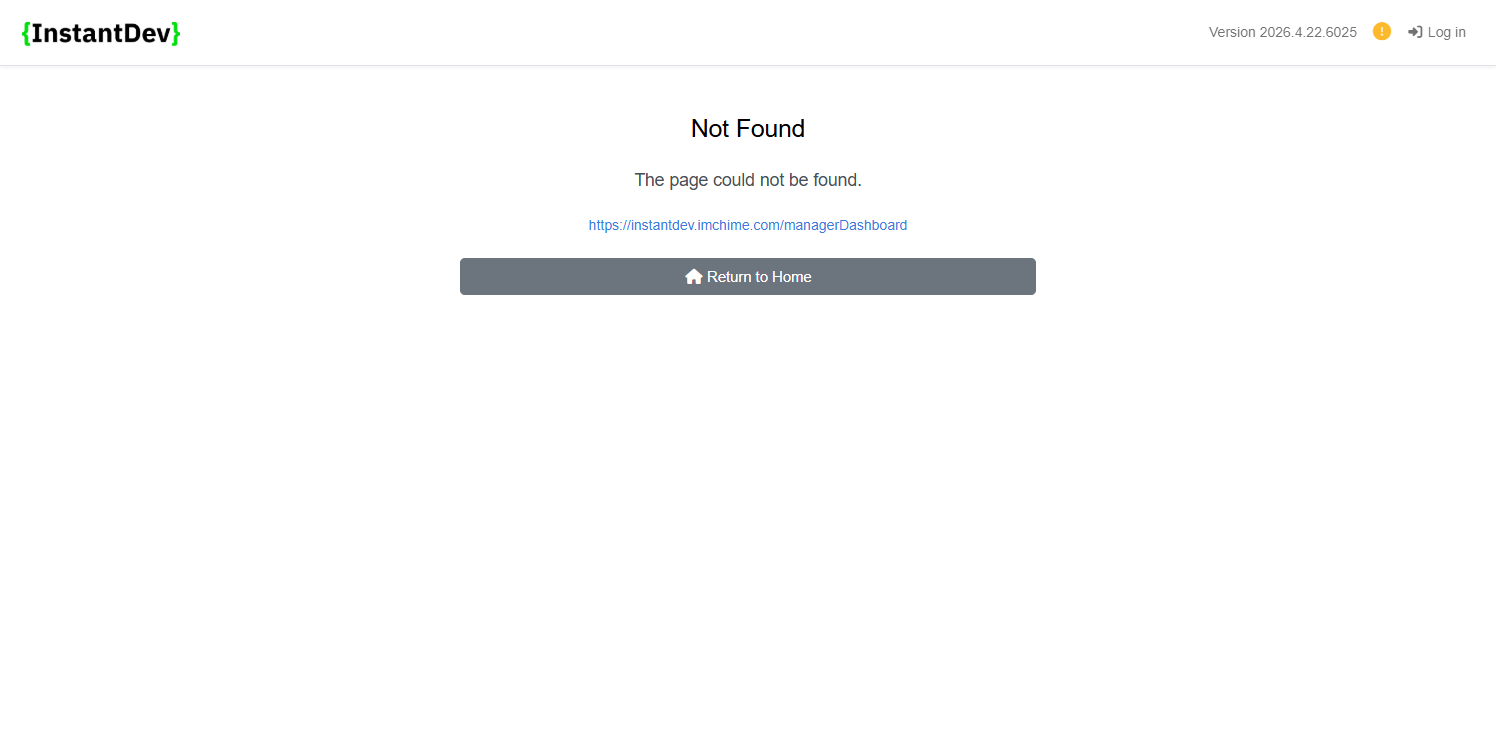
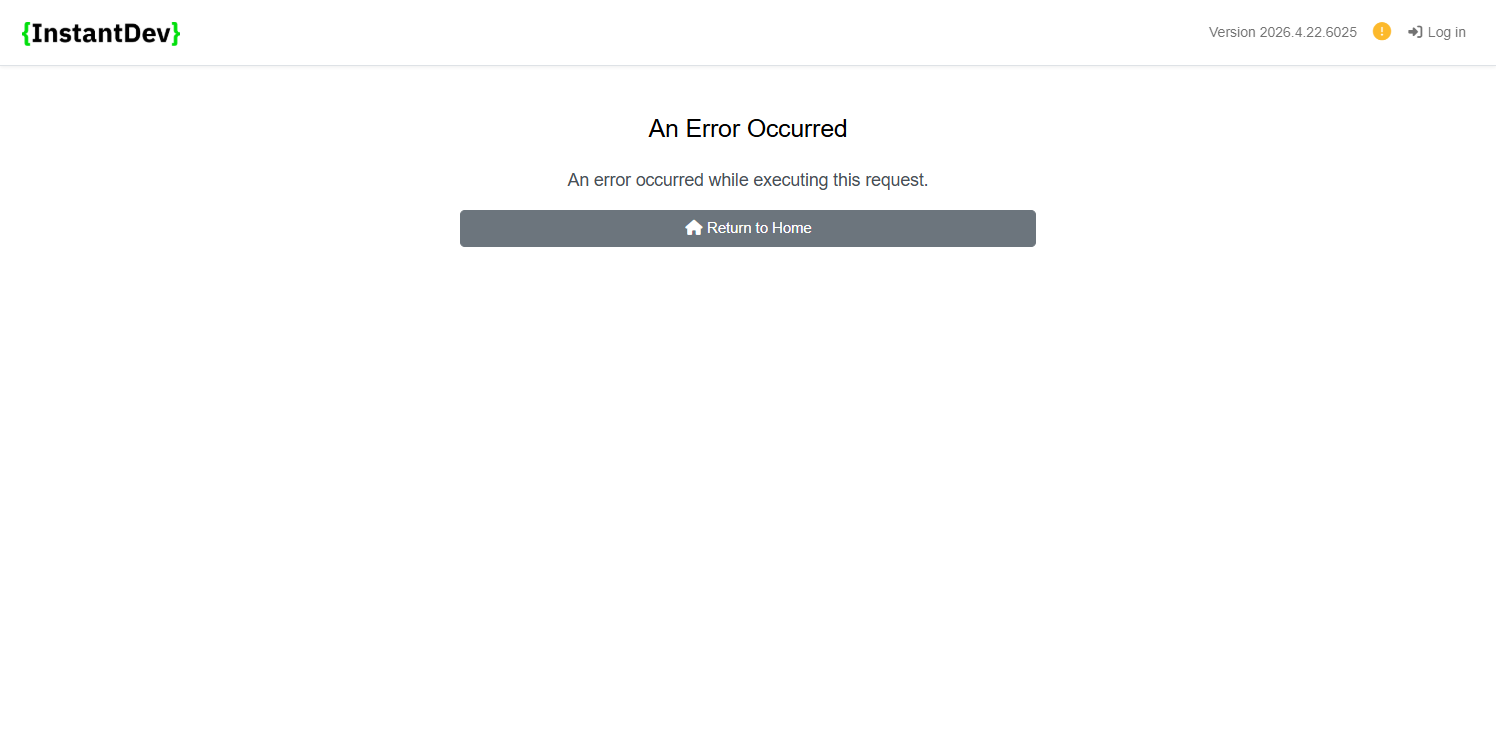
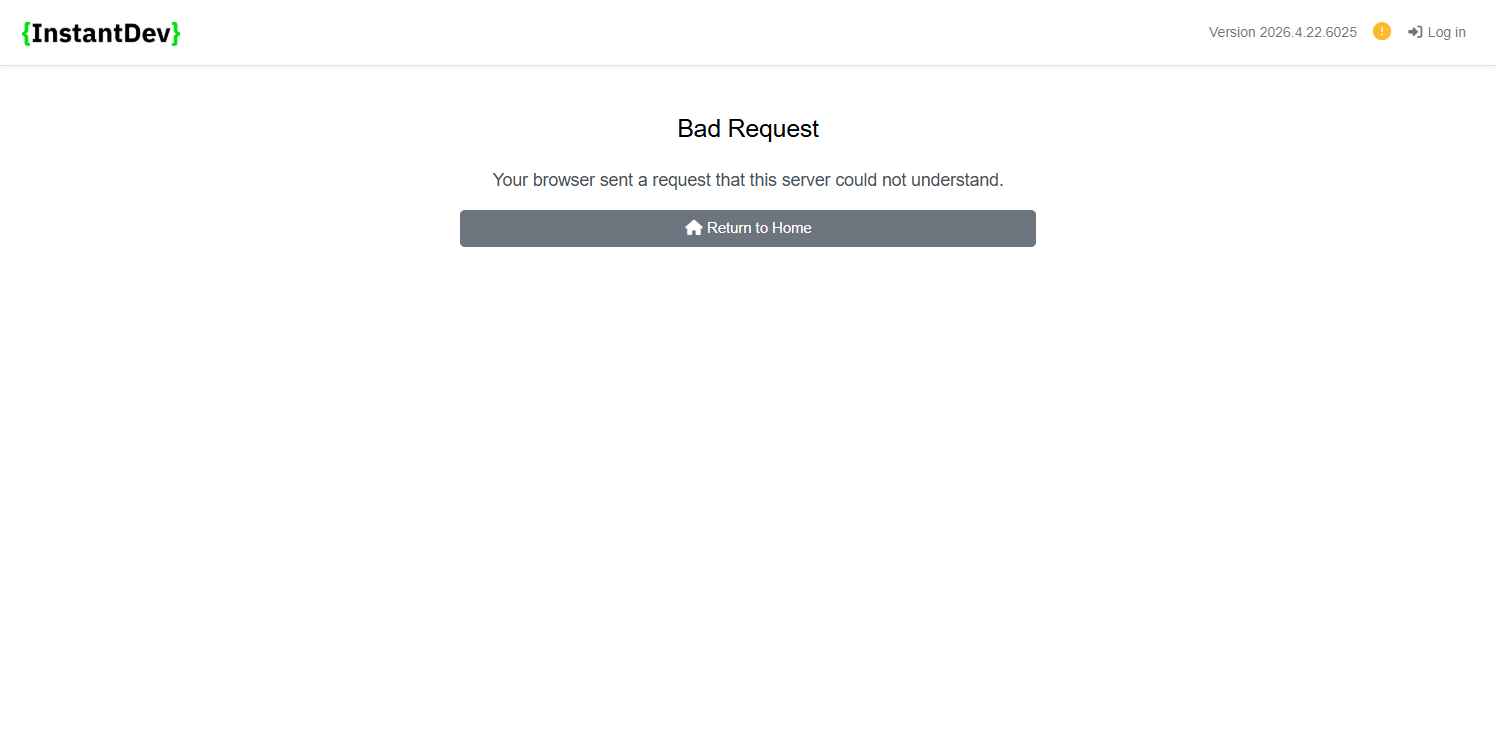
Improved Error Theme Pages - Enhanced error pages with clearer messaging, login and redirect support, and better navigation including retry and back options.
-
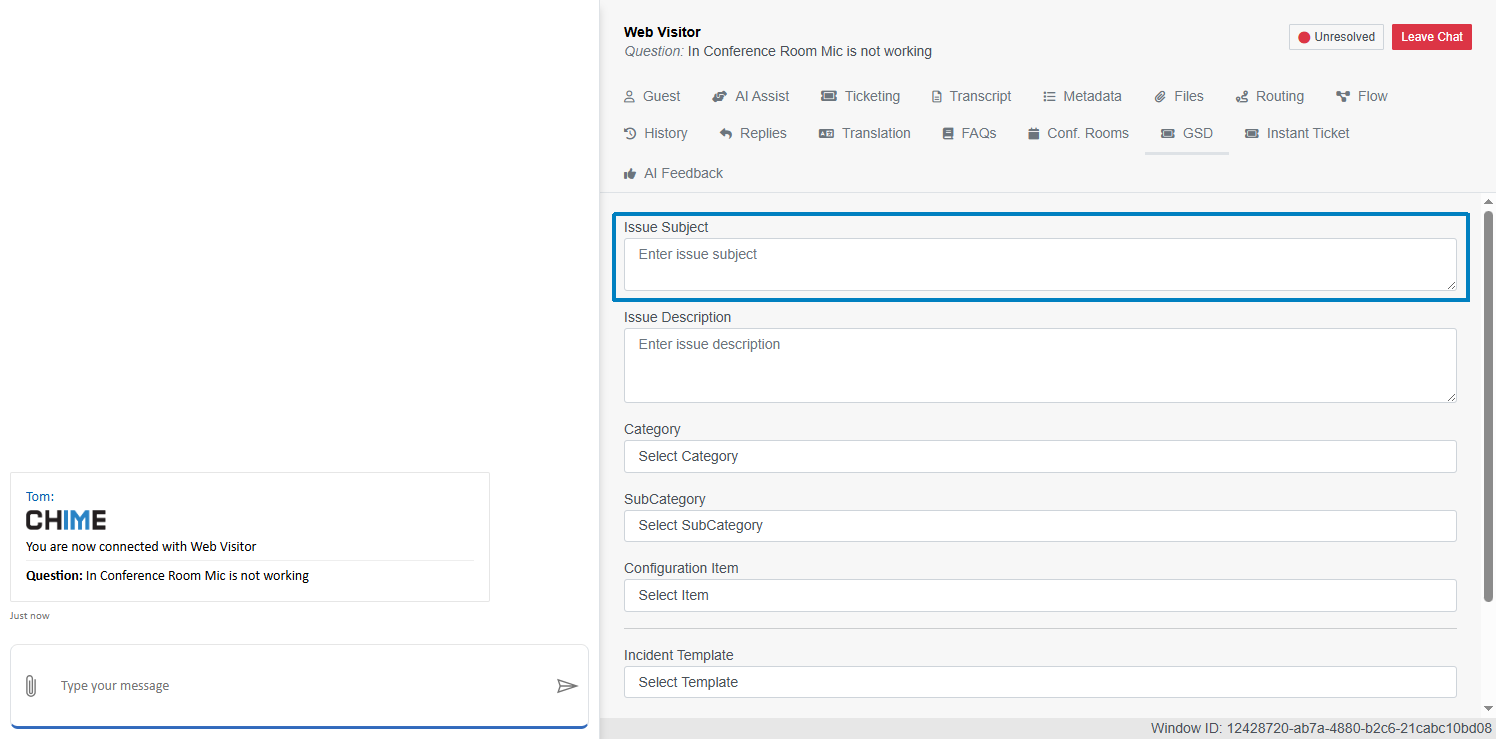
Page GSD Tab Issue Subject Field - Added a new Issue Subject field to better capture and attach ticketing context to chat session metadata.
-
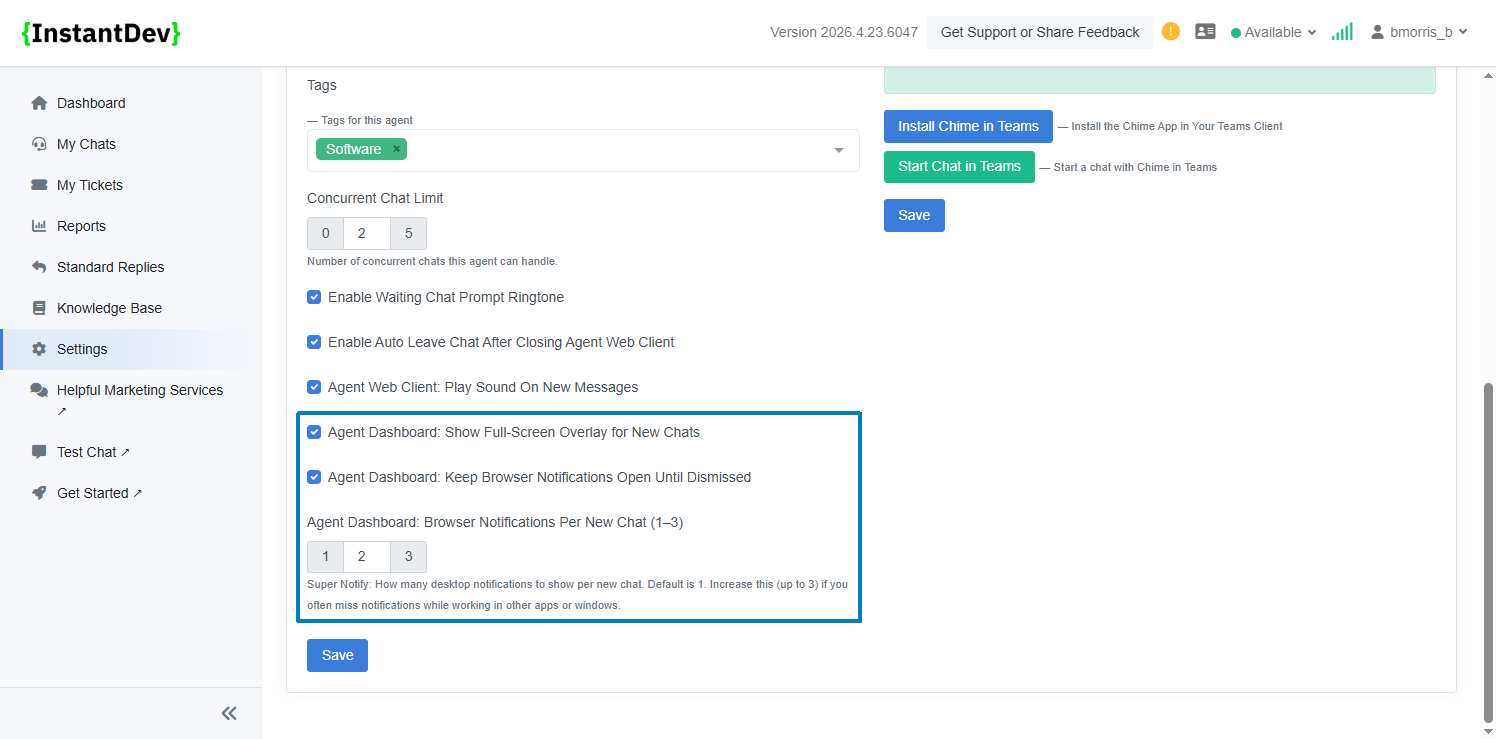
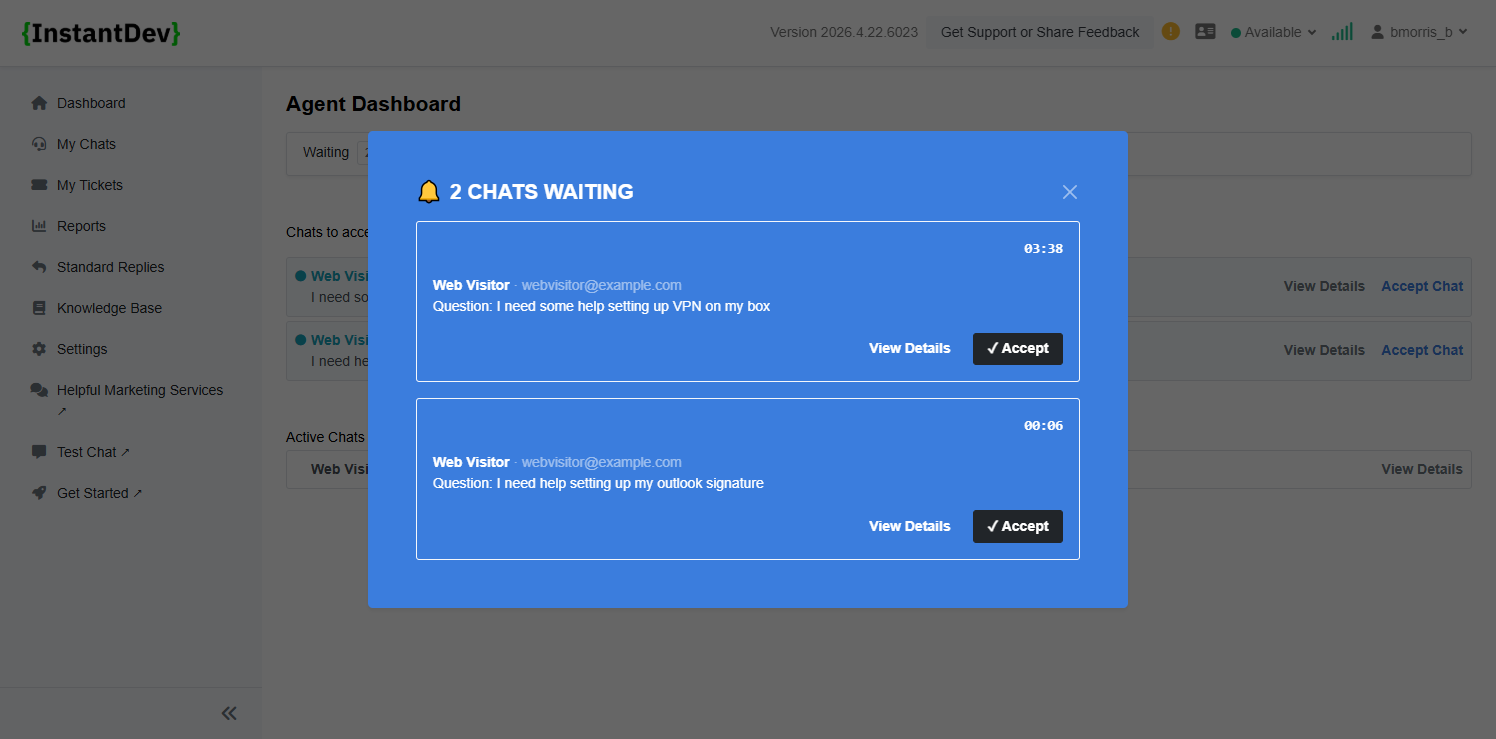
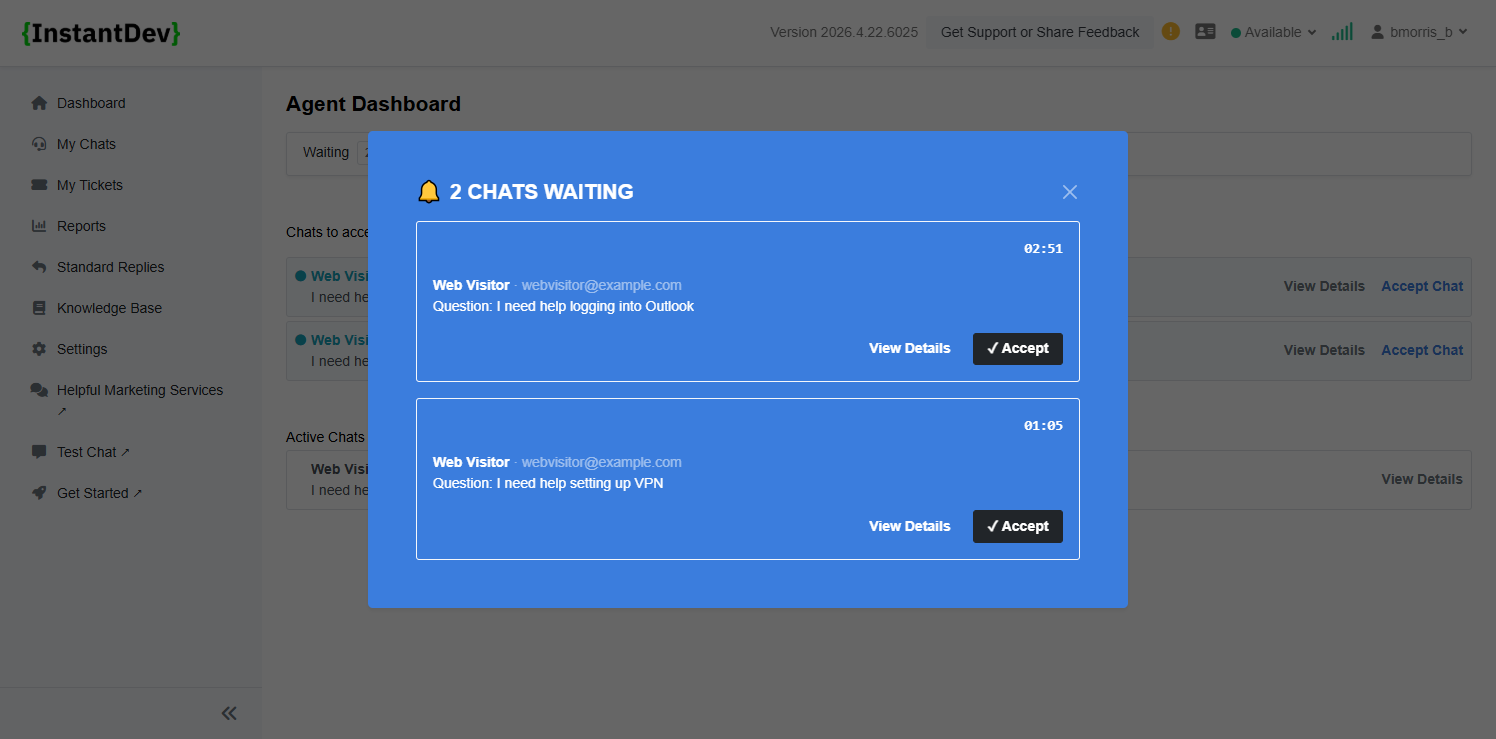
Agent Dashboard Notifications - Introduced a modal notification with a primary color background to ensure important alerts are clearly visible to agents.
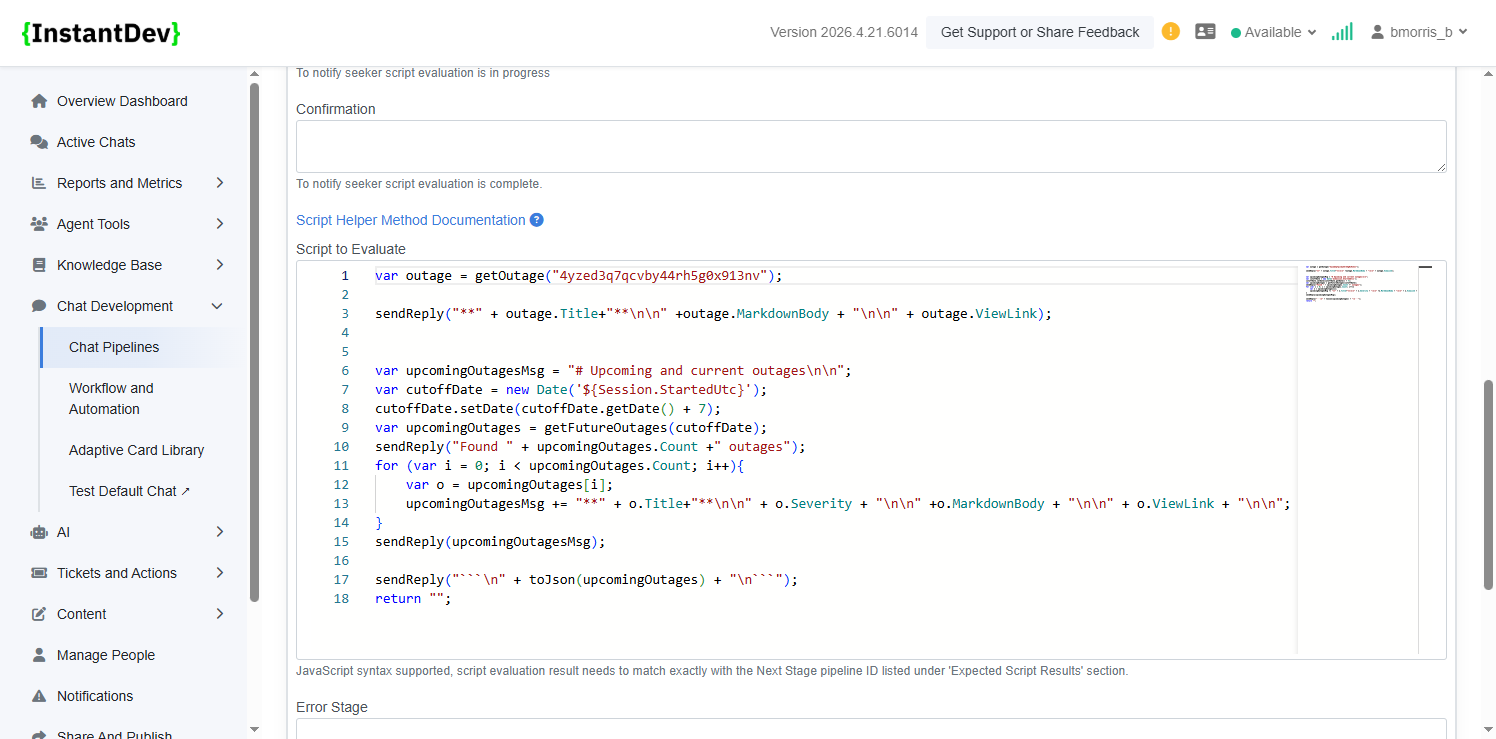
Step 2 – Outage scripts now support retrieving ongoing and upcoming outage data using dedicated scripting methods.
Click image to open full-size
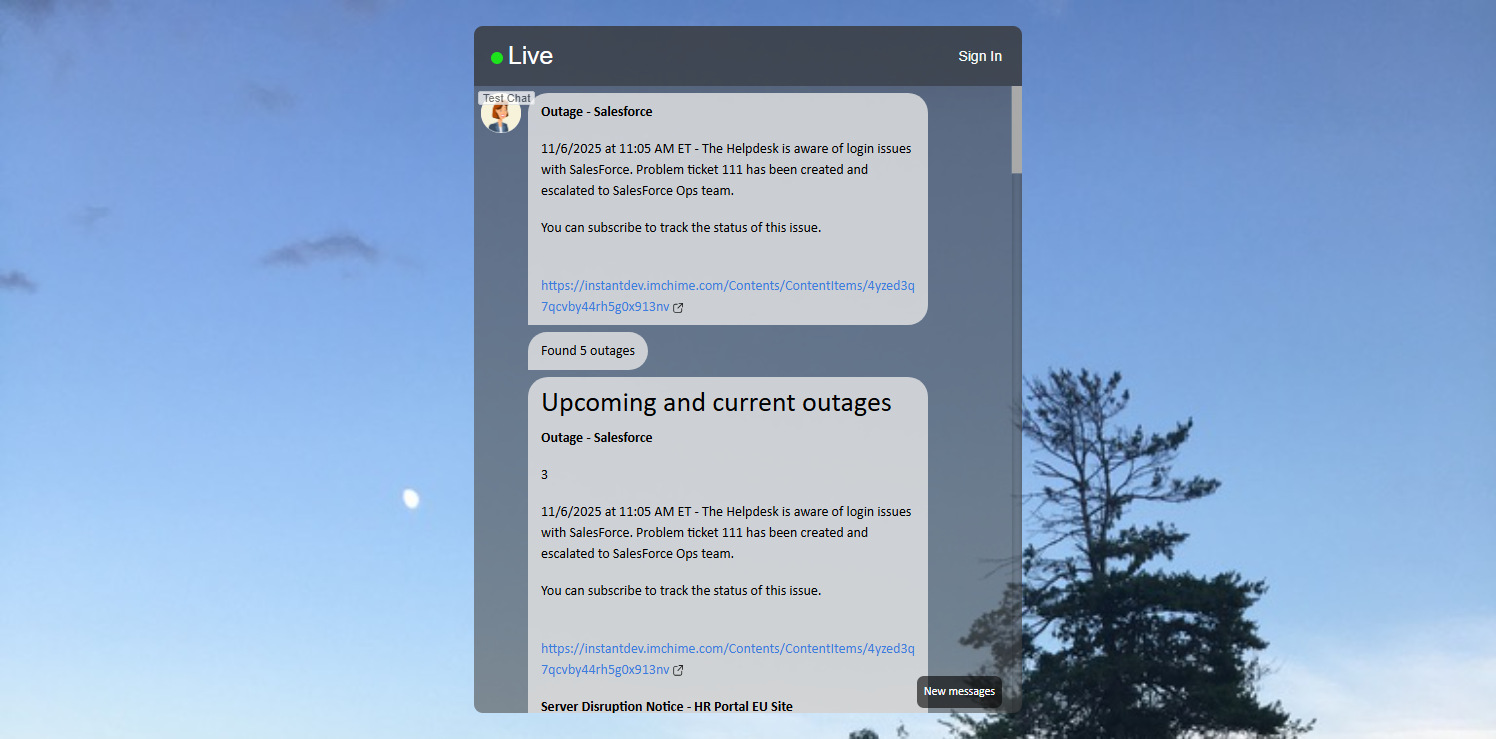
Step 3 – Outage details are returned from scripts and displayed directly within the guest chat experience.
Click image to open full-size
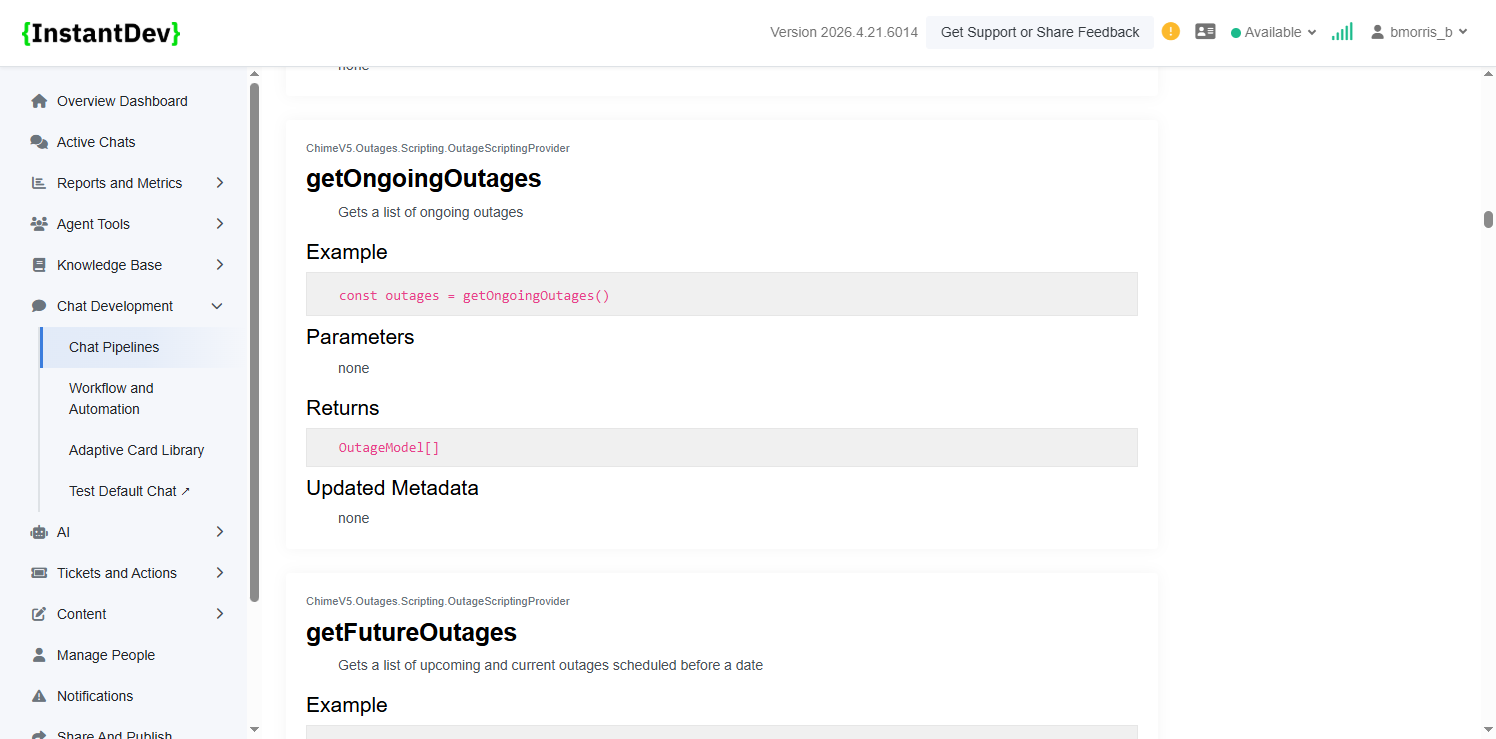
Step 4 – Returns a list of currently active outages for use within outage scripts.
Click image to open full-size
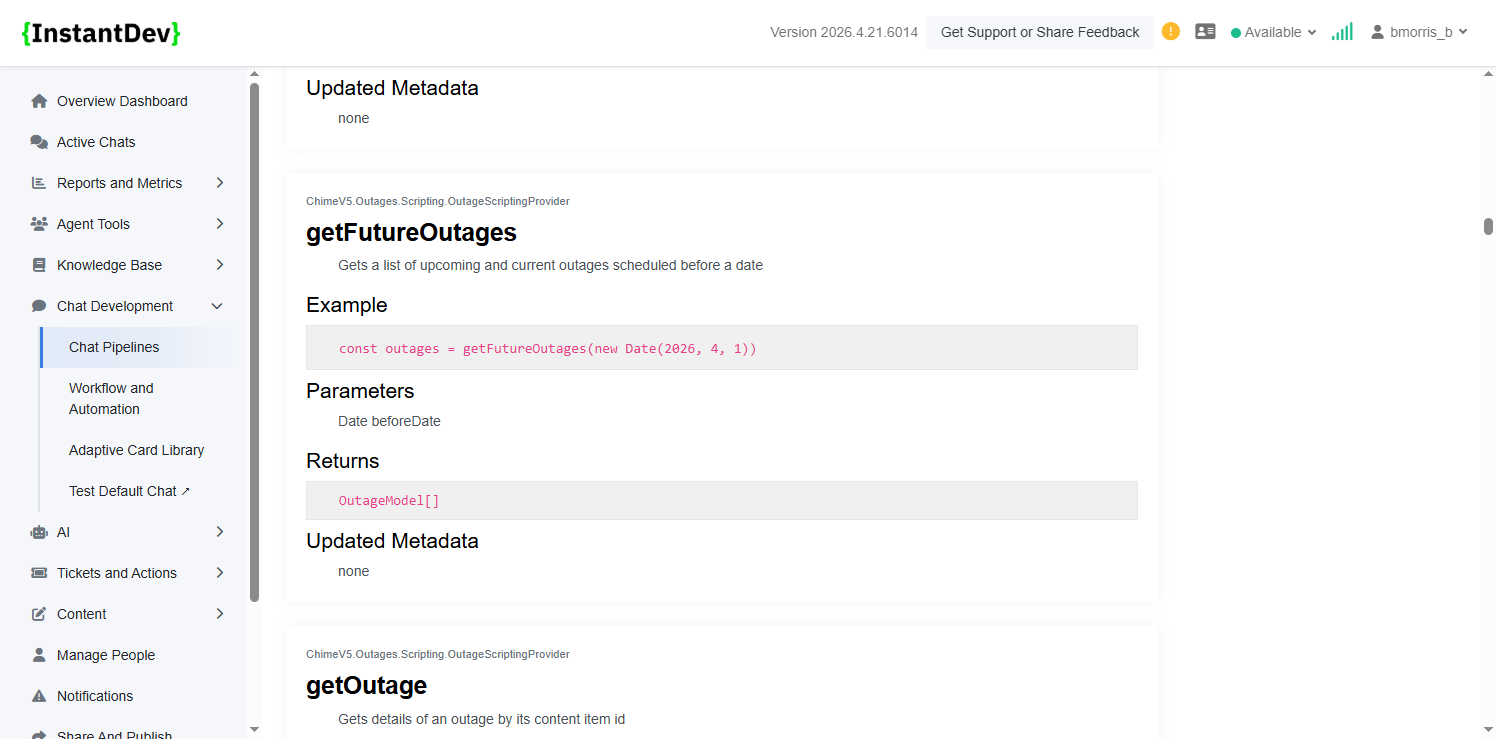
Step 5 – Retrieves a list of upcoming scheduled outages to support proactive messaging.
Click image to open full-size
Step 6 – Retrieves details for a specific outage, enabling targeted responses within scripts.
Click image to open full-size
Step 7 – Navigate to: Instantdev - Agent Settings
Click image to open full-size
Step 8 – Navigate to: (2) 🔔 New Chat — Instantdev - Agent Dashboard
Click image to open full-size
Step 9 – Navigate to: Web Visitor | Question: In Conference Room Mic is not working
Click image to open full-size
Step 10 – Navigate to: Instantdev - Agent Dashboard
Click image to open full-size
Step 11 – Captured a region of the Windows desktop.
Properties
SelectWindowsRegion
Step ID9a72ba6930654bc284221beaf0ebcd8e
Click image to open full-size
Step 12 – Navigate to: Instantdev
Click image to open full-size
Step 13 – Navigate to: Instantdev
Click image to open full-size
Step 14 – Navigate to: Instantdev
Click image to open full-size
Step 15 – Navigate to: Instantdev
Click image to open full-size
Step 16 – Navigate to: Instantdev
Click image to open full-size
Step 17 – Navigate to: Instantdev - Settings
Click image to open full-size
Step 18 – Navigate to: Instantdev - View Confluence Content
Click image to open full-size
Step 19 – Navigate to: Instantdev - Confluence Page Search MCP Tool Test
Click image to open full-size
Step 20 – Navigate to: Instantdev - Confluence Page Search MCP Tool Test
Click image to open full-size
Step 21 – Navigate to: Instantdev - Agent Teams Notification Settings Status
Click image to open full-size
Step 22 – Navigate to: Instantdev - Search Teams Address Book
Click image to open full-size
Step 23 – Navigate to: Instantdev - Send Message To Teams User
Click image to open full-size
Step 24 – Navigate to: Instantdev - Send Message To Teams User
Click image to open full-size
Step 25 – Navigate to: Instantdev - Send Message To Teams User
Click image to open full-size
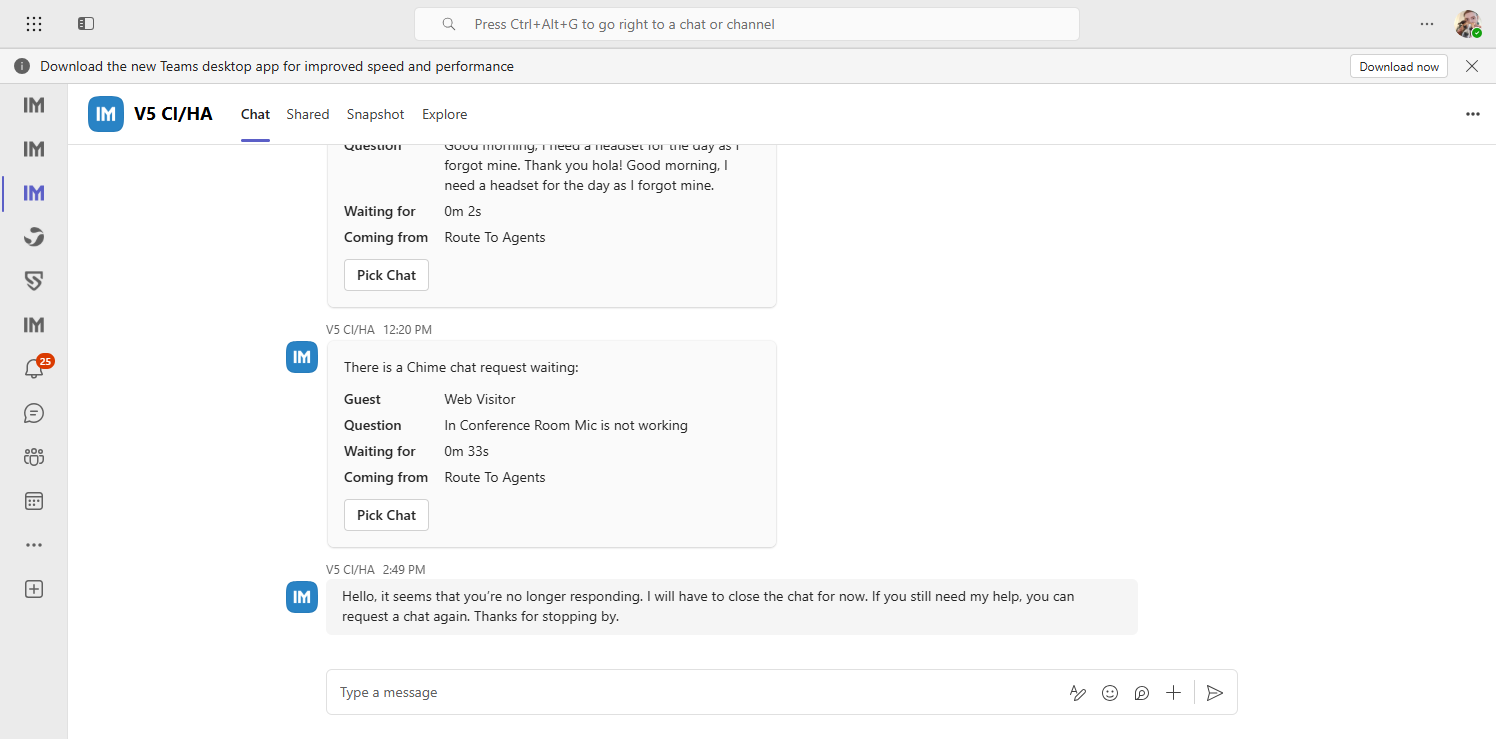
Step 26 – Navigate to: (25) V5 CI/HA | V5 CI/HA | Microsoft Teams
Click image to open full-size
× ‹
›